
Email Input Content Properties
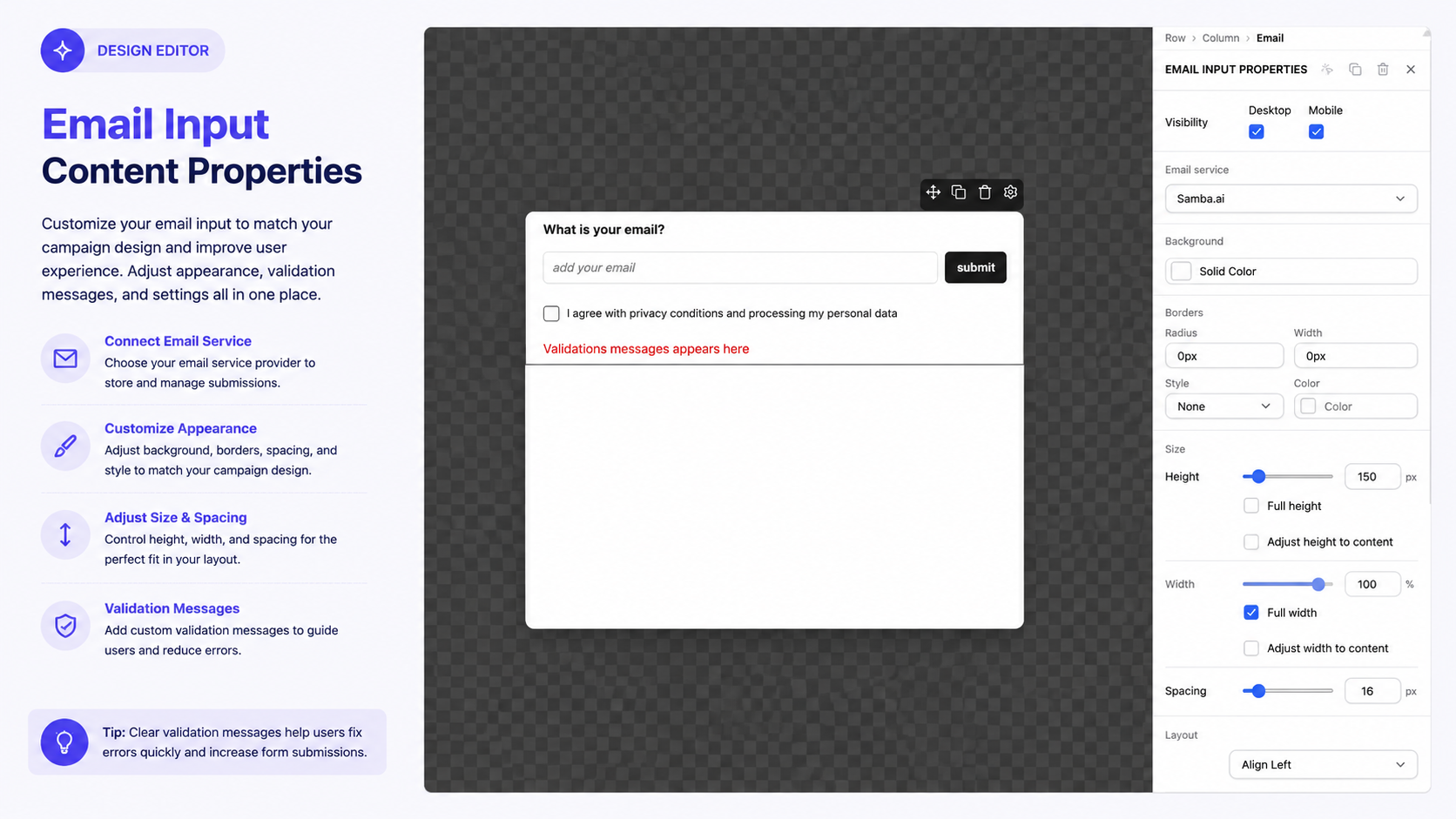
The Email Input content block allows you to collect visitor email addresses directly from your campaign. You can customize its appearance, layout, visibility, and other content properties.
To learn how to add an Email Input to your campaign, see Working with Content Blocks.
The Email Input also has dedicated settings for configuring how the form works, including subscription actions, consent, and validation messages. For detailed instructions, see Email Input Settings.
Visibility
Use the Visibility settings to control where the Email Input appears.
- Desktop — displays the Email Input on desktop devices.
- Mobile — displays the Email Input on mobile devices.
You can enable or disable each option independently.
For more information about arranging content for different screen sizes, see Managing Rows and Layout.
Email Service
The Email Service determines which connected email service receives submitted email addresses.
Select an available service from the dropdown. Available email and marketing integrations include:
- Samba.ai
- Ecomail
- Mailchimp
- Leadhub
Drip is currently marked as Coming soon and is not yet available.
Before selecting an email service, make sure the required integration is configured in the Integration Hub.
For service-specific setup instructions, see:
Tip: Make sure the selected email service is properly configured before publishing your campaign.
Background
Use Background to add a background color to the Email Input block.
Select Solid Color and choose the desired color.
For more information about background and visual styling, see Background and Visual Styling.
Borders
Customize the Email Input border using the following settings:
- Radius — controls how rounded the corners are.
- Width — controls the border thickness.
- Style — choose from None, Solid, Dashed, Dotted, or Double.
- Color — sets the border color.
For more information about border styling, see Background and Visual Styling
Size
The Size settings control the dimensions of the Email Input block.
Height
Adjust Height to make the block taller or shorter.
You can also use:
- Full height — makes the element use the available height.
- Adjust height to content — allows the height to adapt to its content.
Width
Adjust Width to control the horizontal size of the block.
You can also enable:
- Full width — makes the Email Input span the available width.
- Adjust width to content — allows the width to adapt to its content.
Spacing
Use Spacing to control the space around the Email Input block. Enter a value in pixels to increase or decrease the distance between the element and surrounding content.
For additional layout guidance, see Managing Rows and Layout.
Layout
The Layout settings control how the content is arranged within the Email Input.
Order
Use Order to determine the layout direction.
For example, Column arranges the content vertically.
Align Vertically
Control the vertical position of the content:
- Top
- Center
- Bottom
Align Horizontally
Control the horizontal position of the content:
- Left
- Center
- Right
These settings help you align the Email Input with other elements in your campaign layout. For more information, see Managing Rows and Layout.
Edit HTML
The Edit HTML option provides access to the HTML associated with the Email Input element.
Use this option for advanced customization when needed.
For more information about HTML content, see HTML Content Properties.
Products
The Products section allows you to associate products with the Email Input element.
Click + Add to tag a product or product category.
Tagged products can be attributed to the campaign, helping connect the email form with the products promoted by the campaign.
For more information, see Tagging Products.
Email Input Settings
The Email Input has additional settings for configuring the form's behavior, including:
- Subscription actions
- Success and already-subscribed behavior
- Labels and placeholders
- Button text and position
- Consent requirements
- Validation messages
- Email registration behavior
For detailed instructions on configuring these options, see Email Input Settings.
If you're building a campaign specifically to collect visitor emails, see Grow Your Email List for an end-to-end use case.
Tip: Keep the Email Input simple and easy to use. Use appropriate sizing, spacing, and alignment, and test the form on both desktop and mobile before publishing.
Once your Email Input is configured, see Saving and Publishing a Campaign to learn how to save your changes and make the campaign live.