
Saving and Publishing a Campaign
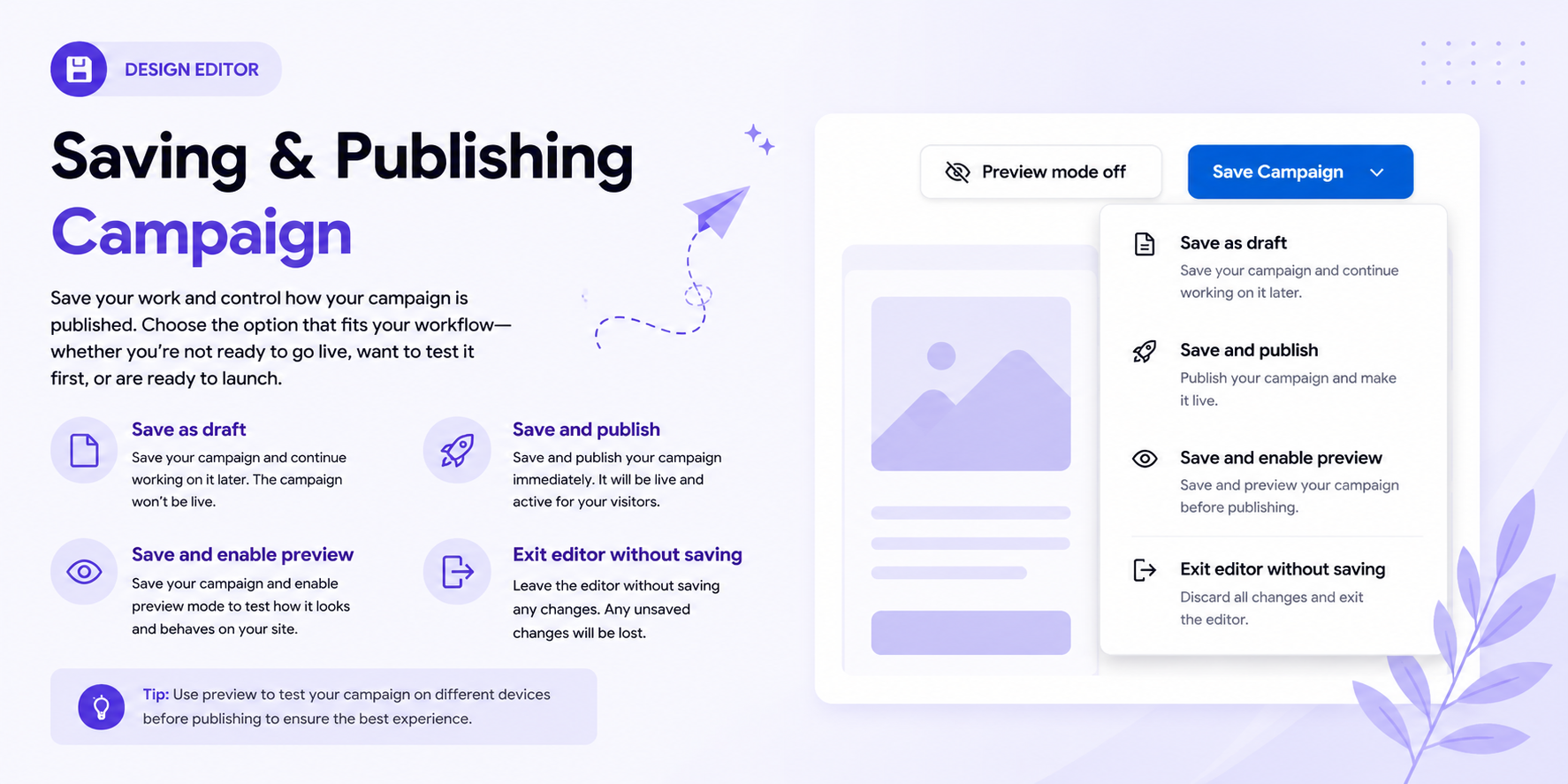
The Save Campaign menu allows you to save your work, publish campaign changes, preview your campaign, or leave the editor without saving.
To access these options, click Save Campaign in the top-right corner of the Design Editor.
For an overview of the editor, see Design Editor Overview.

Save as Draft
Use Save as draft to save your current changes without publishing the campaign.
This option is useful when:
- The campaign is still being designed.
- You want to continue editing later.
- You need to review your changes before publishing.
Saving as a draft keeps your changes in the campaign without making them live for visitors.
For information about editing campaign content, see Working with Components and Working with Content Blocks.
Save & Publish
Use Save and publish when your campaign is ready to go live.
This option:
- Saves your latest changes.
- Publishes the updated campaign.
Once published, the campaign can be displayed to visitors according to its configured workflow and settings.
Before publishing, review your campaign design and behavior. See Configuring Campaign Steps if your campaign contains multiple steps.
Save & Enable Preview
Use Save and enable preview to save your changes and enable the campaign preview.
Preview allows you to check how the campaign appears before fully publishing it.
You can review:
- Popup layout
- Text and images
- Buttons and interactive elements
- Multi-step behavior
- Desktop and mobile appearance
- Popup and sticker positioning
For more information about campaign appearance, see Popup Design Settings and Background and Visual Styling.
Exit Editor Without Saving
Use Exit editor without saving when you want to leave the Design Editor without keeping your unsaved changes.
Any changes made since your last save will not be applied.
⚠️ Warning: Make sure you save any changes you want to keep before exiting the editor.
Choosing the Right Option
| Option | What it does | When to use it |
|---|---|---|
| Save as draft | Saves changes without publishing | Continue working on the campaign later |
| Save & Publish | Saves and publishes changes | The campaign is ready to go live |
| Save & Enable Preview | Saves changes and enables preview | Review the campaign before publishing |
| Exit editor without saving | Leaves the editor without saving recent changes | Discard the changes from the current editing session |
Before Publishing
Before selecting Save & Publish, check that:
- Your campaign content is complete.
- Images and text are displayed correctly.
- Buttons and links work as expected.
- All campaign steps are configured correctly.
- Desktop and mobile layouts look correct.
- The workflow is configured as intended.
You can review Design Editor Overview, Configuring Campaign Steps, and Building Workflows before publishing.