
Tagging Products
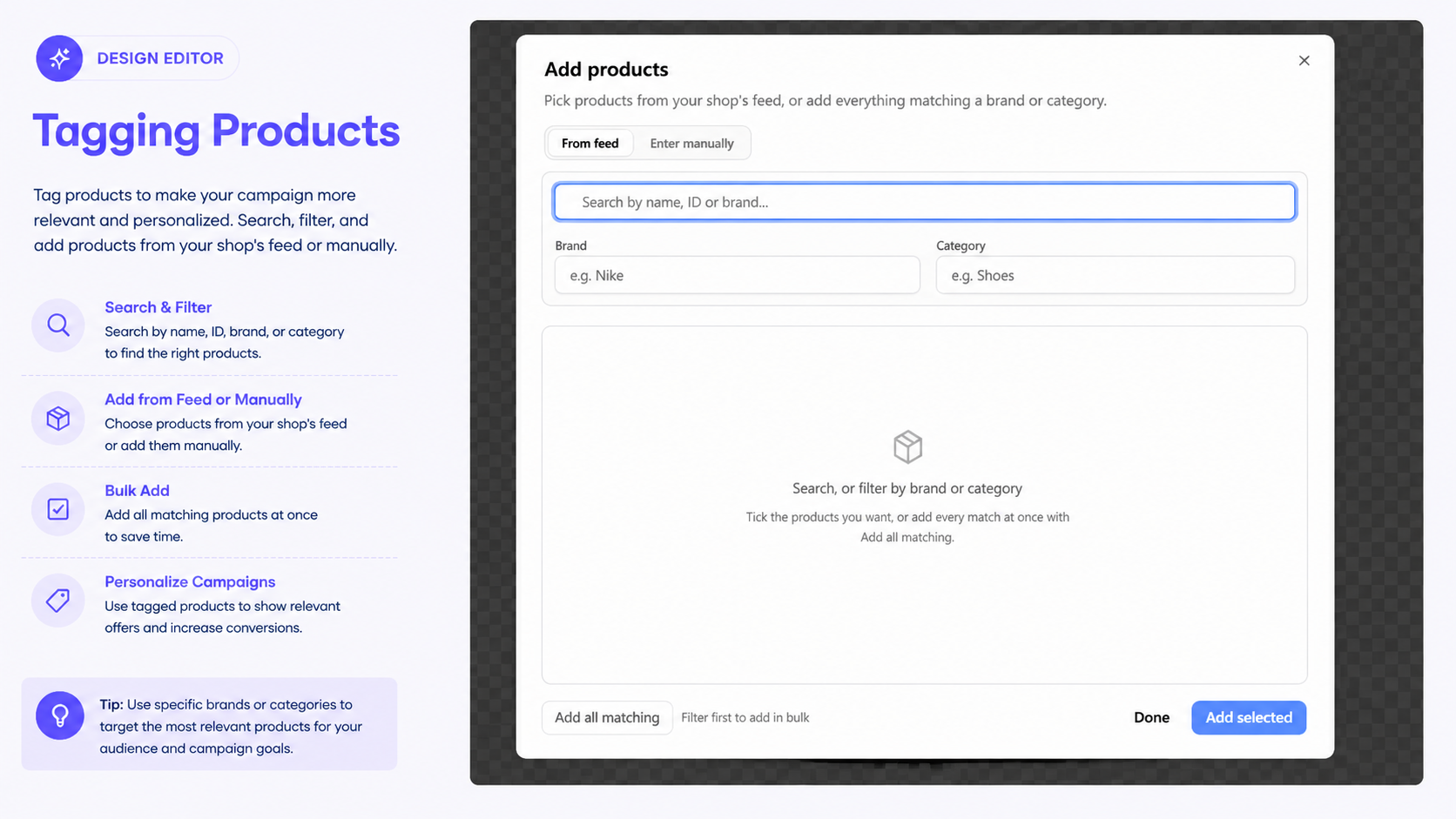
The Products setting allows you to associate products with a content element in your campaign. Tagging products helps identify which products are promoted by the element and allows orders containing those products to be attributed to the campaign.
You can add products either from your shop feed or manually using product IDs.
For more information about working with campaign content, see Working with Content Blocks.
Open Product Settings
To add products to an element:
-
Select the content element you want to associate with a product.
Open the Products section in the element properties.
Click + Add.
Choose how you want to add the products:
- From feed
- Enter manually
Add Products From Feed
Use From feed to select products that are already available in your shop's product feed.
Search for a Product
You can search for products using:
- Name
- Product ID
- Brand
You can also filter the results by:
- Brand
- Category
For example, enter a brand such as Nike or a category such as Shoes to narrow the product list.
For information about how Tango.ad uses product data, see Ecommerce API.
Select Products
- Search for a product or apply a brand or category filter.
- Select the products you want to associate with the element.
- Click Add selected.
- Click Done when finished.
Add All Matching Products
If you want to associate all products matching your search or filters:
- Search for a product or filter by brand or category.
- Click Add all matching.
- Review the products that will be added.
- Click Done.
Tip: Filter by brand or category before using Add all matching to avoid adding products that are not relevant to the campaign.
Add Products Manually
Use Enter manually when the products you want to tag are not selected from the shop feed.
You can add products using their Product ID.
Add a Product
Enter the following information:
- Product ID — required. This must match the product ID used by your shop.
- Name — optional. You can use this as a label for the product.
- Price — optional. You can enter a price for the product.
Click + Add to list to add the product.
Add Multiple Product IDs
You can also paste multiple product IDs at once.
Product IDs can be entered:
- One per line
- Separated by commas
The product ID is the required value. The system uses it to match the product with the ID provided by your shop.
Note: The name and price entered manually are labels for the product list. The product ID must match the ID your shop sends for the product.
Review Tagged Products
After adding products, the Products section displays the products associated with the element.
If no products have been added, the section displays No products tagged.
Review the tagged products before saving the campaign to make sure the correct products are associated with the element.
For more information about saving your campaign changes, see Saving and Publishing a Campaign.
Why Tag Products?
Product tagging helps connect campaign content with the products it promotes. When a visitor interacts with the campaign and later places an order containing a tagged product, the product can be attributed to the campaign.
This is especially useful for:
- Product promotions
- Product recommendations
- Discount campaigns
- Category promotions
- Measuring campaign performance for specific products
For more information about measuring campaign performance and business impact, see Analytics Overview.
Best practice: Tag only the products that are directly promoted by the selected element. This keeps product attribution accurate and makes campaign reporting more meaningful.