
Managing Rows and Layout
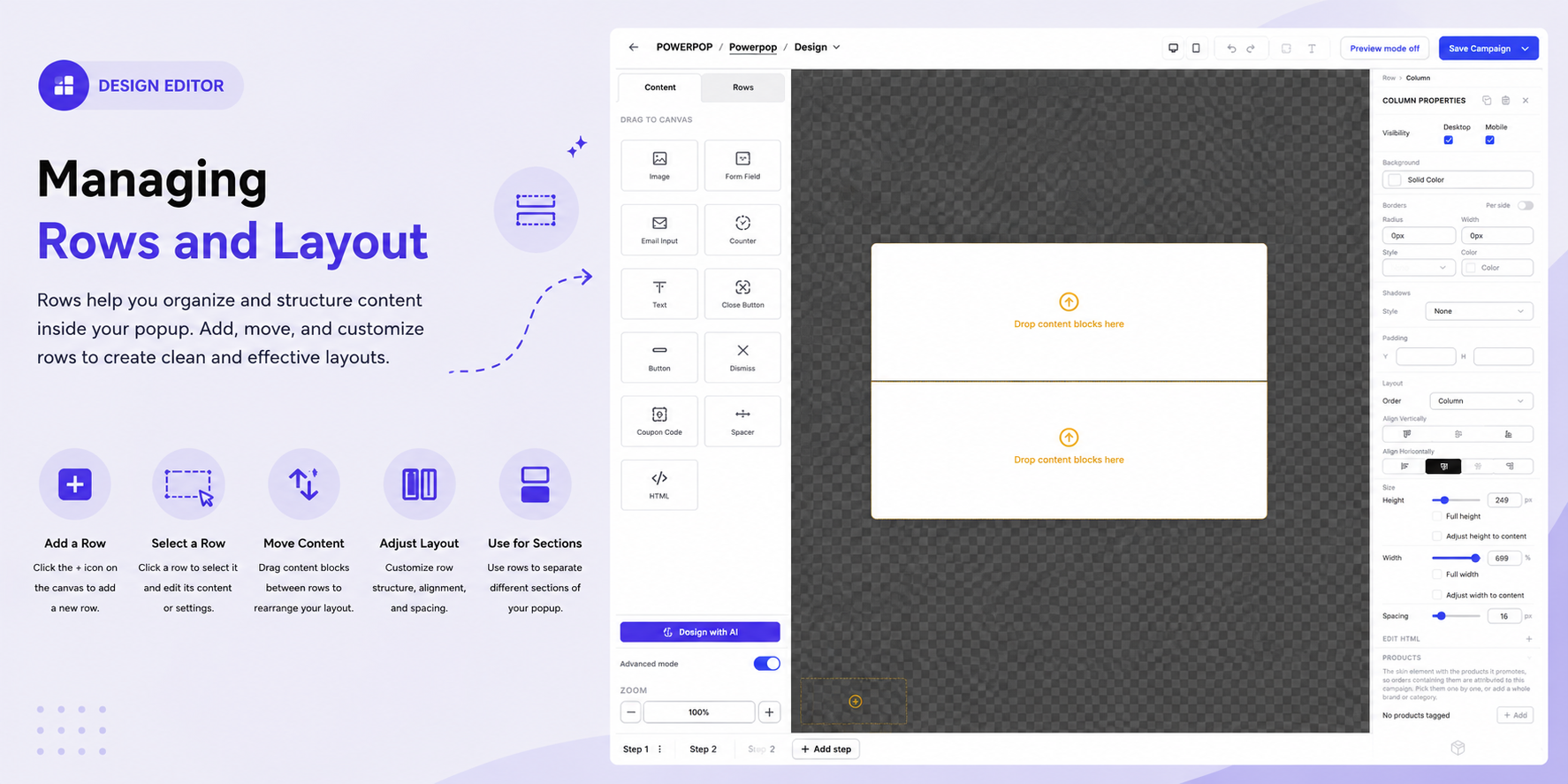
Rows help you organize content inside your popup. Each row acts as a separate section of the layout and can contain one or more content blocks.
Use rows to create clear sections, arrange content side by side, and control the overall structure of your popup.
For an overview of the Design Editor and its main areas, see Design Editor Overview.
Adding a Row
To add a row to your popup:
- Open the Design Editor.
- Select the Rows tab in the Content panel.
- Choose the row layout you want to use.
- Drag the row from the Rows panel onto the canvas.
- Drop it where you want the row to appear.
- Add content blocks to the row.
Available row layouts can include a single column or multiple columns, allowing you to arrange content in different ways.
After adding a row, you can add and arrange content using the available content blocks.
Selecting a Row
To configure a row:
- Click the row on the canvas.
- The row or its column settings open in the editor.
- Adjust the available layout and styling options.
Depending on the selected row or column, you can configure properties such as:
- Background
- Borders
- Shadows
- Padding
- Layout
- Alignment
- Height and width
- Spacing
For more information about visual styling options, see Background and Visual Styling.
Moving Content Between Rows
You can reorganize your popup by moving content blocks between rows.
- Select the content block you want to move.
- Drag it to the desired row.
- Drop it into the appropriate column or position.
- Adjust the block's alignment or spacing if needed.
This makes it easy to rearrange your design without rebuilding the content from scratch.
For more information about adding, moving, and managing elements, see Working with Components.
Adjusting Row Layout
Rows can be used to create different layouts depending on how many columns you need.
For example:
- Single-column row — useful for headlines, images, or full-width content.
- Two-column row — useful for placing an image beside text or an offer beside a button.
- Three-column row — useful for displaying multiple items side by side.
- Multiple-column row — useful for creating more complex layouts.
After selecting a row, adjust its column settings to control the size, alignment, spacing, and positioning of the content.
Column Settings
When a column is selected, you can adjust options such as:
- Visibility — choose whether the column is visible on desktop or mobile.
- Background — add a background color.
- Borders — configure the border radius, width, and style.
- Shadows — add a shadow effect.
- Padding — control the vertical and horizontal space inside the column.
- Alignment — control how content is aligned vertically and horizontally.
- Size — adjust the column height and width.
- Spacing — control the space around the column.
For more advanced control over alignment, sizing, and spacing, see Advanced Layout Settings if this is a separate article in your current KB structure.
Using Rows for Different Popup Sections
Using separate rows helps divide a popup into clear sections. For example, a promotional popup could use:
| Row | Content |
|---|---|
| Row 1 | Headline and short description |
| Row 2 | Product image and promotional details |
| Row 3 | Coupon code |
| Row 4 | Call-to-action button |
| Row 5 | Additional information or dismiss option |
You can then customize individual elements within each row using their respective content properties. For example, see Image Content Properties, Coupon Code Content Properties, or Button Content Properties.
Tip: Use separate rows for major sections of your popup. This makes it easier to manage spacing, alignment, and responsive behavior without affecting other sections.