
HTML Content Properties
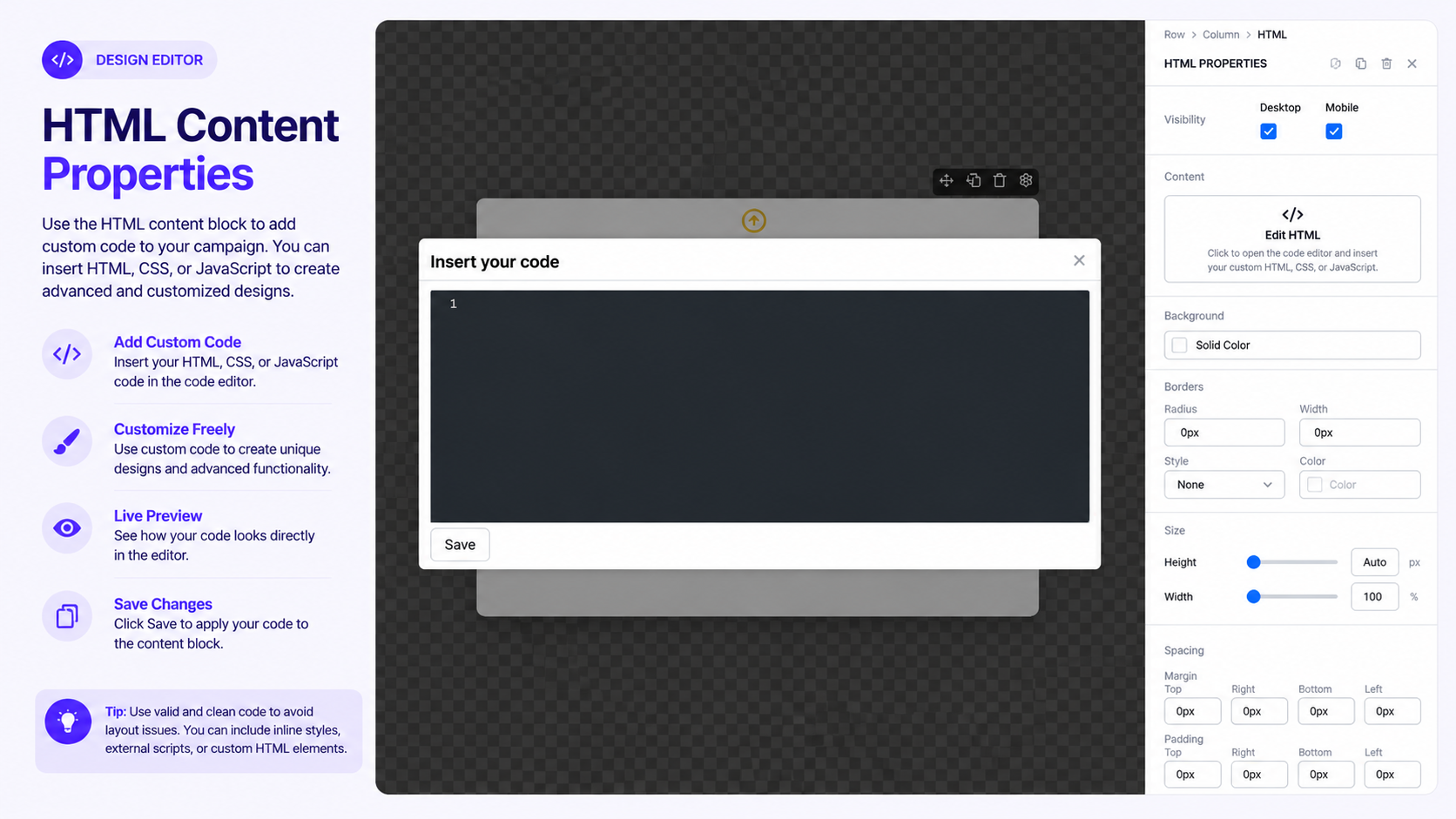
The HTML content block allows you to add custom HTML code directly to your campaign. It is useful when you need to create custom elements or add functionality that is not available through the standard editor components. To learn how content blocks work in the editor, see Working with Content Blocks.
Add HTML Code
- Drag the HTML block from the content panel onto the canvas.
- Select the HTML element.
- Click Edit HTML to open the code editor.
- Enter or paste your HTML code into the editor.
- Click Save to apply the code to your campaign.
The HTML editor provides a code area where you can enter your custom markup.
Note: Make sure your HTML code is valid before saving it. Custom code may affect how the campaign is displayed, so test the campaign in preview mode before publishing. For more information about previewing and publishing campaigns, see Saving and Publishing a Campaign.
HTML Code Rules
The HTML block is intended for HTML markup. The available documentation does not currently specify which HTML tags are allowed or blocked, whether <script> tags are stripped or executed, or whether the editor enforces a maximum code size.
Because these rules affect whether custom code will run, verify the following before publishing documentation that includes specific restrictions:
- Allowed HTML tags
- Blocked or stripped tags
- JavaScript /
<script>support - Maximum HTML/code size
Important: Do not assume that JavaScript or
<script>tags are supported. If you need to add JavaScript functionality, verify the platform's current security and execution policy before adding it to a campaign.
Edit HTML
You can reopen the HTML editor at any time to update the code.
Use Edit HTML when you need to:
- Add custom HTML elements
- Modify existing custom markup
- Add content that is not available as a standard editor block
- Update custom code used in your campaign
For other content blocks and their properties, see Working with Components.
Styling the HTML Block
After adding the HTML block, you can use the available element properties to adjust its appearance and layout, depending on the HTML content.
Common options include:
- Background — Adjust the element's background appearance. See Background and Visual Styling.
- Borders — Customize the border radius, width, style, and color.
- Shadow — Add a shadow to the element.
- Size — Adjust the height and width of the element.
- Spacing — Configure the spacing around the element.
- Position — Adjust where the element appears within the layout.
- Layout — Control how the element is positioned within its row. See Managing Rows and Layout.
Products
The Products section allows you to associate products with the HTML element.
Click + Add to tag products or product categories when needed. Tagged products can then be attributed to the campaign. Learn more about product tagging in Tagging Products.
Tip: Use the HTML block when you need more flexibility than the standard components provide. For simple text, images, buttons, or forms, use the dedicated editor blocks instead. You can learn more about available blocks in Working with Content Blocks.