
Layout & Styling
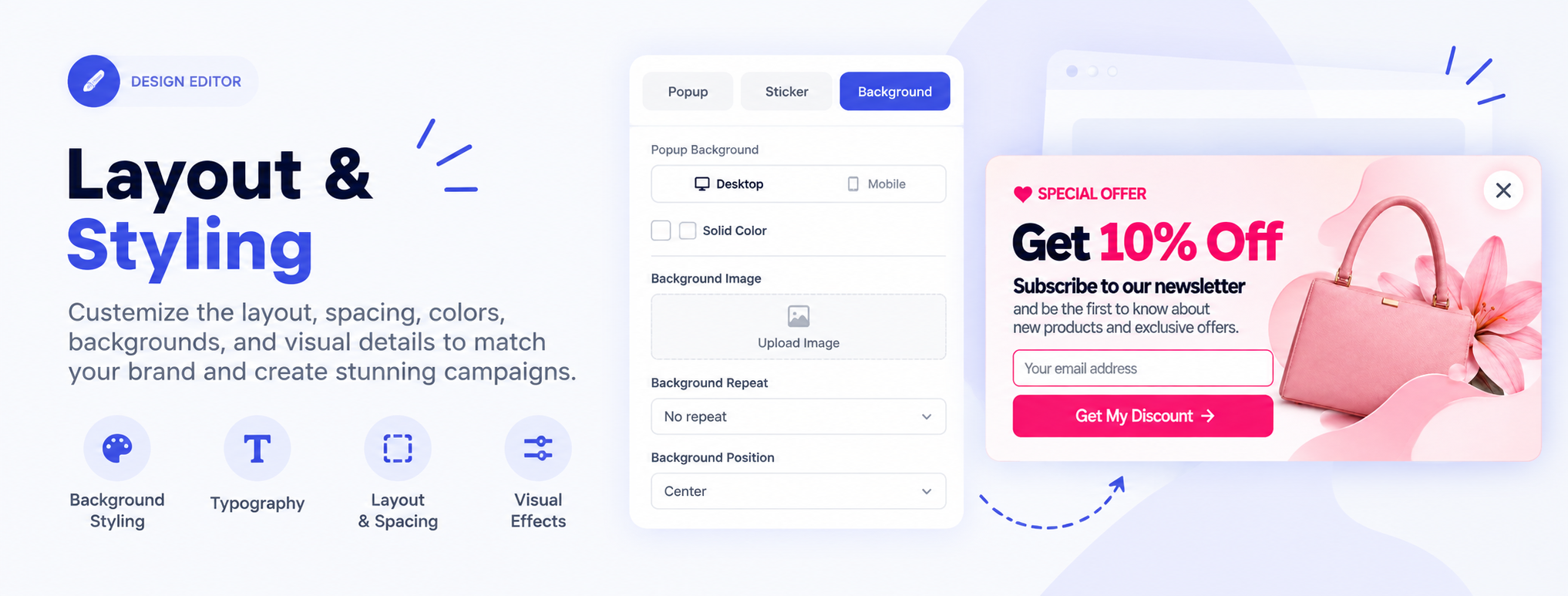
The Layout & Styling settings allow you to control the structure, spacing, appearance, and overall look of your campaign. You can organize content into rows, adjust element spacing and alignment, customize backgrounds, and style text and other visual elements.
These settings help you create a consistent layout that matches your campaign design.
Open Layout & Styling Settings
- Open your campaign in the Design Editor.
- Select the element, row, or canvas area you want to customize.
- Open the available styling or layout settings.
- Adjust the settings as needed.
- Preview the campaign to check how the changes appear.

Manage Rows and Layout
Rows are used to organize content on the canvas.
You can:
- Add new rows.
- Arrange content within rows.
- Adjust row spacing.
- Control the layout of elements inside a row.
Each campaign starts with a default row. You can add additional rows when you need to separate different sections of your campaign.
See Managing Rows and Layout for more information.

Adjust Spacing and Position
Use layout settings to control the space around elements and their position within the layout.
Depending on the selected element, you can adjust:
- Margin — Controls the space outside an element.
- Flex direction — Controls whether elements are arranged horizontally or vertically.
- Justify content — Controls how elements are distributed along the main axis.
- Align items — Controls the alignment of elements along the cross axis.
- Flex wrap — Controls whether elements move to another line when there is not enough space.
- Order — Changes the position of an element within the layout.
- Flex basis — Defines the initial size of an element.
- Flex grow — Controls how an element expands when additional space is available.
- Flex shrink — Controls how an element shrinks when space is limited.
These options are especially useful when creating responsive layouts.
See Advanced Layout Settings for more information.
Customize Background and Visual Styling
You can customize the visual appearance of the campaign and its elements.
Depending on the selected area, available options can include:
- Background color
- Background image
- Image repeat
- Background position
- Background attachment
- Background size
- Border radius
- Box shadow
These settings can be used to create visual separation, add imagery, and adjust the overall appearance of the campaign.
See Background and Visual Styling for more information.
Style Text
Use the typography settings to customize text elements.
You can adjust:
- Font family
- Font size
- Font weight
- Font style
- Font size unit
Supported font size units include:
px%emremvhvw
Choose the unit that best fits your layout and responsive design requirements.
See Typography and Text Styling for more information.
Configure Element Layout
Select an element on the canvas to access its available layout and styling options.
The settings available depend on the selected element. For example, an image may include visual styling options, while a text element may provide typography settings.
You can combine these settings to control how individual elements look and how they fit into the overall campaign layout.
See Working with Content Blocks for more information.
Popup Design Settings
Use the popup design settings to configure the overall appearance and positioning of your popup.
See Popup Design Settings for more information.
Preview Your Changes
Preview your campaign regularly while adjusting the layout and styling.
This helps you check:
- Element positioning
- Spacing
- Text appearance
- Backgrounds
- Overall visual balance
- How the layout appears at different screen sizes
For information about previewing a campaign on your website, see Display a Campaign in Preview.
Save Your Changes
After finishing your layout and styling changes:
- Review the campaign in the editor.
- Preview the result.
- Click Save or Save & Publish, depending on whether you want to publish the changes.
- If you are not ready to publish, save the campaign as a draft.
See Saving and Publishing a Campaign for more information.