
Typography and Text Styling
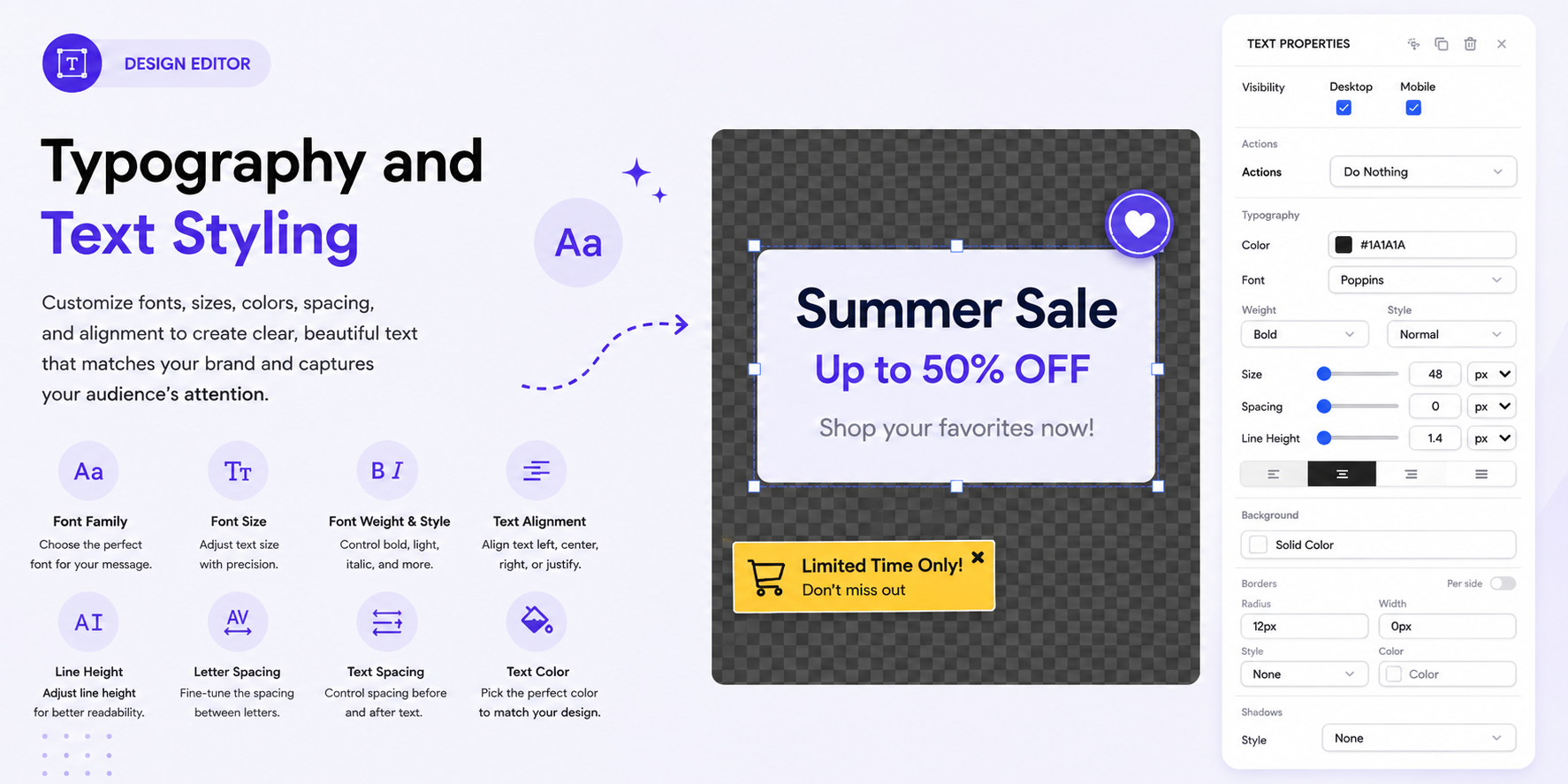
Typography settings allow you to customize the appearance and spacing of text elements in your campaign. Use these options to make headings, descriptions, labels, and other text clear and consistent with your campaign design.
To access the typography settings, select a Text element on the canvas.
For more information about working with text elements, see Text Content Properties.
Font Family
The Font setting controls the typeface used for the selected text.

You can choose from the available fonts, including:
- Default
- Arial
- Arial Black
- Brush Script MT
- Comic Sans MS
- Courier New
- Georgia
- Helvetica
- Impact
- Lucida Sans Unicode
- Tahoma
- Times New Roman
- Trebuchet MS
- Verdana
- Inter
Select the font that best matches your campaign's visual style.
Font Size
The Size setting controls how large or small the text appears.
Enter a value in the size field and select the desired unit from the dropdown.
For example, a larger size can be used for a headline, while a smaller size can be used for supporting text.
Font Units
You can choose the unit used for font size and other typography measurements from the available options.
Common units include:
- px — fixed pixel size.
- % — size relative to the surrounding element.
- em — relative to the font size of the element's parent.
- rem — relative to the root font size.
- vh — relative to the viewport height.
- vw — relative to the viewport width.
Choose the unit that best suits your layout and responsive design needs.
For additional information about campaign layout and responsive styling, see Layout & Styling.
Font Weight
The Weight setting controls how thick the text appears.
Available options include:
- Thin
- Extra-Light
- Light
- Normal
- Medium
- Semi-Bold
- Bold
- Extra-Bold
- Ultra-Bold
Use heavier weights to emphasize important information, such as headings or calls to action.
Font Style
The Style setting controls whether the text is displayed normally or in italics.
Available options include:
- Normal — displays standard text.
- Italic — displays slanted text.
Use Italic to add emphasis or distinguish supporting text.
Text Alignment
Use the alignment controls to position text within its container.
Available alignment options include:
- Left
- Center
- Right
- Justify
Choose an alignment that fits the structure of your popup and keeps the content easy to read.
Text Spacing
The spacing controls allow you to adjust the distance between and around lines of text.
Spacing
The Spacing setting controls the spacing applied to the text element. Adjust the value to create more or less space where needed.
Line Height
The Line Height setting controls the vertical distance between lines of text.
Increase the line height for paragraphs or longer text to improve readability. Reduce it when creating compact headings or short text blocks.
Text Color
Use the Color setting to change the text color.
You can select a color that provides sufficient contrast with the popup background and matches your campaign's visual style.
For more information about overall visual styling, see Background and Visual Styling.
Tip: Use a consistent font family and limit the number of font styles and weights in a campaign. Use size, weight, and alignment to create a clear visual hierarchy between headings, supporting text, and calls to action.