
Configuring Campaign Steps
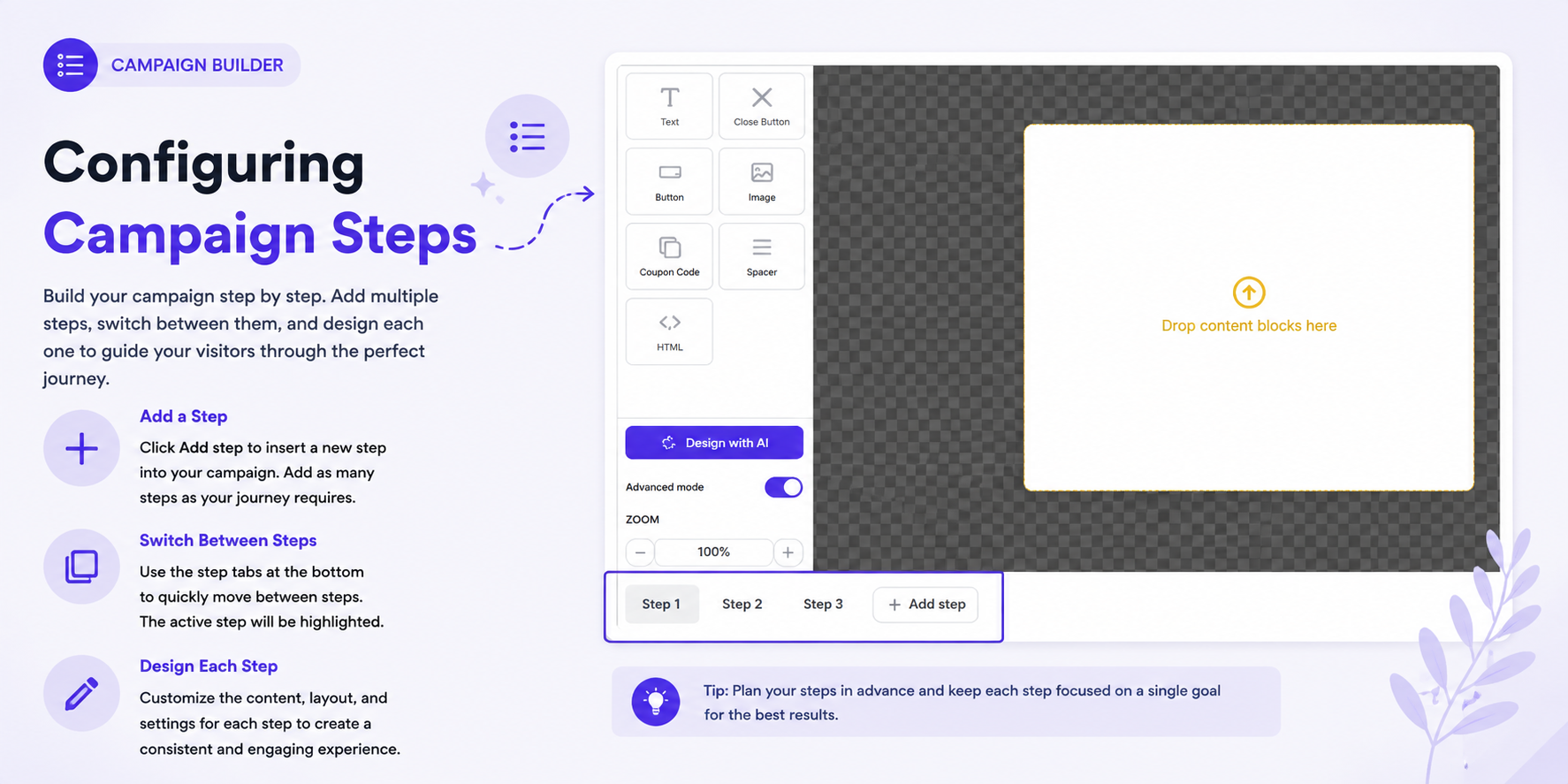
Campaign steps allow you to create a multi-step visitor experience within a single campaign. Each step can have its own content, layout, popup, sticker, and behavior.
Use multiple steps when you want to guide visitors through a sequence, such as showing an offer first and then displaying additional information or a follow-up action. For a broader overview of multi-step campaigns, see Build Multi-Step Customer Journeys.
Adding a Step
To add a new campaign step:
- Open the Design Editor.
- At the bottom of the editor, click + Add step.
- A new step is added to the campaign.
- Select the new step to begin designing it.
You can also use the step menu to insert an empty step after the currently selected step.
Step Menu Options
Click the three-dot menu next to a step to access additional options:
- Rename this step — Change the step name to make it easier to identify.
- Insert empty step after — Add a new blank step after the selected step.
- Duplicate this step — Create a copy of the current step, including its design and settings.
- Delete this step — Remove the selected step from the campaign.
Tip: Give steps descriptive names such as Welcome, Offer, Email Signup, or Thank You to make complex campaigns easier to manage.
Switching Between Steps
The steps are displayed at the bottom of the editor.
To switch between steps:
- Click the step you want to edit.
- The selected step becomes active.
- Its content and settings are displayed on the canvas.
- Make your changes as needed.
For example, a campaign can contain:
Step 1 → Step 2 → Step 3
Each step can represent a different part of the visitor journey. You can add and arrange content independently using Working with Content Blocks.
Designing Each Step Separately
Each campaign step has its own design. You can add and arrange content blocks independently for each step.
For each step, you can:
- Add content blocks.
- Add and arrange rows.
- Customize text, images, buttons, and other elements.
- Adjust the layout using Managing Rows and Layout.
- Configure popup settings.
- Configure sticker settings.
- Set step-specific behavior.
Changes made to one step do not automatically change the content of other steps.
Example
A three-step campaign could be structured as:
| Step | Purpose | Example Content |
|---|---|---|
| Step 1 | Introduce the offer | Image, headline, description |
| Step 2 | Collect information | Email Input |
| Step 3 | Confirm the action | Thank-you message and CTA |
This allows you to create a different experience for each stage of the campaign.
Popup and Sticker Settings
Each step can have its own Popup and Sticker configuration.
When a step is selected, open Custom settings for this step to configure its behavior. For detailed popup configuration options, see Popup Design Settings.
Popup Settings
The popup settings can control options such as:
- Desktop and mobile visibility
- Display delay
- Border and shadow
- Width and height
- Padding
- Position
- Opening effect
- Other advanced settings
You can also adjust the visual appearance of the popup through Background and Visual Styling.
Sticker Settings
You can also configure the sticker for the selected step, including:
- Desktop and mobile visibility
- Whether the step starts as a sticker
- Border and shadow
- Size
- Padding
- Position
- Rotation
- Opening effect
- Z-index
For more information about stickers, see Working with Stickers.
Step-Specific Settings
Settings configured under Custom settings for this step apply only to the selected campaign step.
For example, you can configure:
- A delay for one step but not another.
- A popup position specific to a particular step.
- A sticker that appears after a visitor closes one step.
- Different desktop and mobile visibility settings.
- Different opening effects for different steps.
This gives you control over each part of the campaign journey without affecting the other steps.
Creating a Multi-Step Experience
A multi-step campaign can be designed as a sequence of connected experiences.
For example:
-
Step 1 — Promotion
Introduce a special offer.
-
Step 2 — Email Signup
Ask the visitor to enter their email address.
-
Step 3 — Confirmation
Show a thank-you message or additional offer.
You can use Configuring Element Actions to define what happens when visitors interact with elements and move them between steps.
You can also combine campaign steps with Conditions and Actions and Building Workflows to create more advanced visitor journeys.
Tip: Keep each step focused on one goal. Use clear step names and consistent design so visitors can easily follow the campaign journey.