
AI Design

The AI Design feature helps you create professionally designed campaign layouts using artificial intelligence. Instead of building every element manually, AI Design generates a complete campaign based on your description, branding, and selected campaign type.
Whether you're creating a popup, banner, or promotional campaign, AI Design helps you produce polished, on-brand designs in just a few steps.
Benefits of AI Design
AI Design helps you:
- Create campaigns faster.
- Generate professional-looking layouts.
- Maintain consistent branding.
- Reduce manual design work.
- Quickly test different creative ideas.
- Customize AI-generated designs before publishing.
You can also combine AI Design with the Design Editor Overview to manually refine the generated campaign.
Before You Begin
Before using AI Design, make sure you have:
- A Tango.ad workspace.
- At least one configured domain.
- A campaign created or ready to create.
- (Optional) A Brand Kit for consistent colors, fonts, and branding.
- (Optional) Product images or design references.
If you haven't created a campaign yet, see Create a Campaign with AI or Create a Campaign Manually.
Accessing AI Design
To use AI Design:
- Navigate to Campaigns.
- Create a new campaign or open an existing draft.
- Select AI Design from the design options.
The AI Design interface will open, allowing you to generate a campaign layout.

For more information about managing campaigns, see Campaigns Overview.
Describe Your Campaign
Provide a description of the campaign you want AI to generate.
Include information such as:
- Campaign objective
- Target audience
- Offer or promotion
- Desired call-to-action
- Preferred design style
Example Prompt
Create a modern popup offering 15% off for first-time visitors. Use a clean layout with a blue color palette, product image on the right, and a prominent "Claim My Discount" button.
The more specific your prompt, the more accurate the generated design will be.

Upload Optional Design Assets
To improve the generated design, you can upload additional assets.
Product Image
Upload a product image to feature within the campaign.
Best used for:
- Product launches
- Featured products
- Promotional offers

Design Reference
Upload an existing design that reflects your preferred visual style.
Examples include:
- Existing banners
- Previous campaigns
- Brand mockups
- Marketing materials
The AI analyzes the uploaded image to create a similar visual style.

Brand Kit
If available, select a Brand Kit.
A Brand Kit automatically applies your:
- Brand colors
- Typography
- Logos
- Visual identity
This helps ensure consistency across all AI-generated campaigns.

Generate the Design
After entering your campaign information:
- Review your settings.
- Click Generate or Build Campaign.
- Wait while Tango.ad creates your design.
Depending on the complexity of your request, generation may take a few moments.

Review the Generated Design
Once the design has been generated, review all elements before publishing.
Check the following:
- Headlines
- Body text
- Images
- Colors
- Typography
- Buttons
- Overall layout
You can edit the generated campaign using the Design Editor Overview.
Customize the Design
AI-generated designs are fully editable.
You can modify:
- Text
- Images
- Backgrounds
- Buttons
- Colors
- Fonts
- Spacing
- Borders
- Shadows
- Animations, if available
For more information about editing individual campaign elements, see Working with Components.
You can also use Layout & Styling to adjust the appearance and positioning of your campaign.

Preview Before Publishing
Before making your campaign live:
- Preview the campaign.
- Test the layout on:
- Desktop
- Tablet
- Mobile
- Verify that buttons, images, and links work correctly.
- Make any necessary adjustments before publishing.
For additional campaign configuration, see Campaign Settings.

Best Practices
For the best AI-generated designs:
- Write detailed prompts.
- Upload high-quality product images.
- Use a Design Reference whenever possible.
- Apply a Brand Kit for consistent branding.
- Review and customize every generated design before publishing.
- Test the campaign on multiple devices.
Tips
- AI Design provides a strong starting point, but manual adjustments can further improve the final result.
- Experiment with different prompts to generate alternative layouts.
- If the design doesn't meet your expectations, refine your prompt and generate a new version.
- Use the Design Editor Overview to make detailed changes after generation.
- Use Layout & Styling to refine the campaign's visual appearance.
Frequently Asked Questions
Can I edit an AI-generated design?
- Yes. Every AI-generated campaign can be customized in the Design Editor.
Do I need a Brand Kit?
- No. A Brand Kit is optional, but it can help maintain consistent branding across your campaigns.
Can I regenerate a different design?
- Yes. You can update your prompt or uploaded assets and generate a new design until you're satisfied with the result.
Can I create a campaign without AI Design?
- Yes. You can create campaigns manually using Create a Campaign Manually.
Related Articles
- Design Editor Overview
- Create a Campaign with AI
- Campaign Types Overview for Building AI Campaigns
- Create a Campaign Manually
- Campaigns Overview
- Working with Components
- Layout & Styling
- Campaign Settings
-
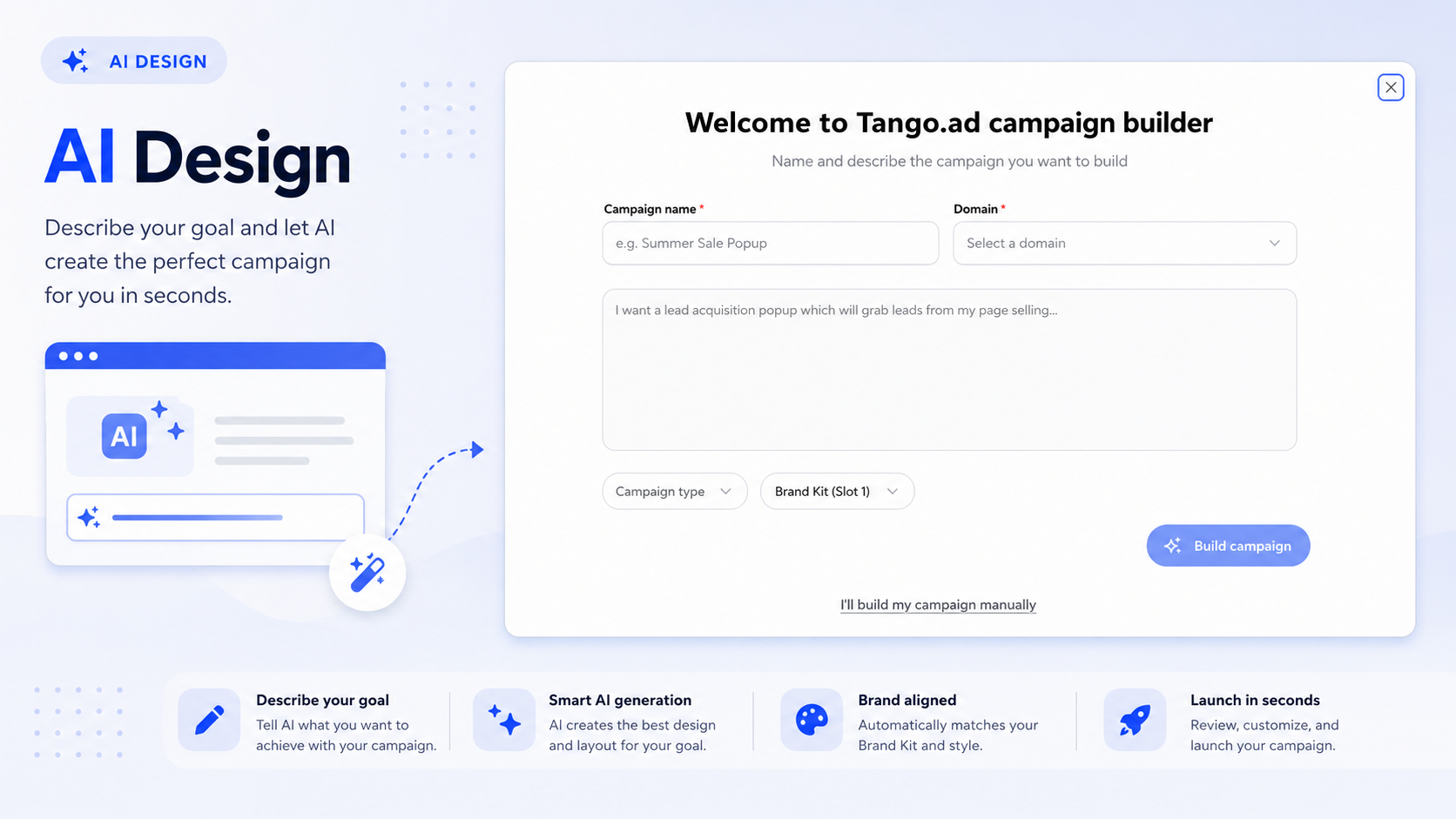
AI Design helps you create campaign designs using artificial intelligence. Instead of designing each element from scratch, you provide information about your campaign and optionally add product images, design references, or a Brand Kit.
AI Design generates a campaign layout based on the information you provide, which you can review and refine before publishing.
-
Before You Begin
Make sure you have:
- A Tango.ad workspace.
- At least one configured domain.
- A campaign created or ready to create.
- A campaign objective, offer, or message to include in the design.
- Optional product images or design references.
- Optional Brand Kit for your brand's visual elements.
- If you haven't created a campaign yet, see Create a Campaign with AI or Create a Campaign Manually.
-
Access AI Design
To start using AI Design:
- Navigate to Campaigns.
- Create a new campaign or open an existing draft.
- Select AI Design from the available design options.
-
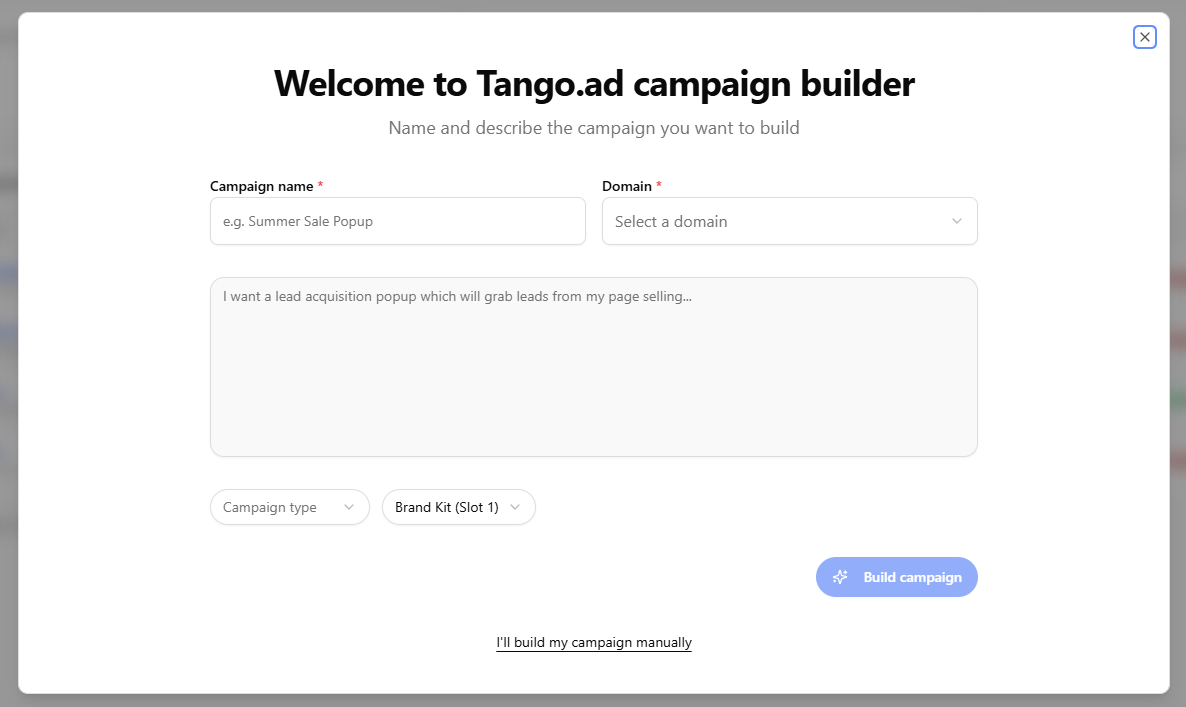
The AI Design interface opens.
Accessing AI Design
For more information, see Campaigns Overview.
-
Describe Your Campaign
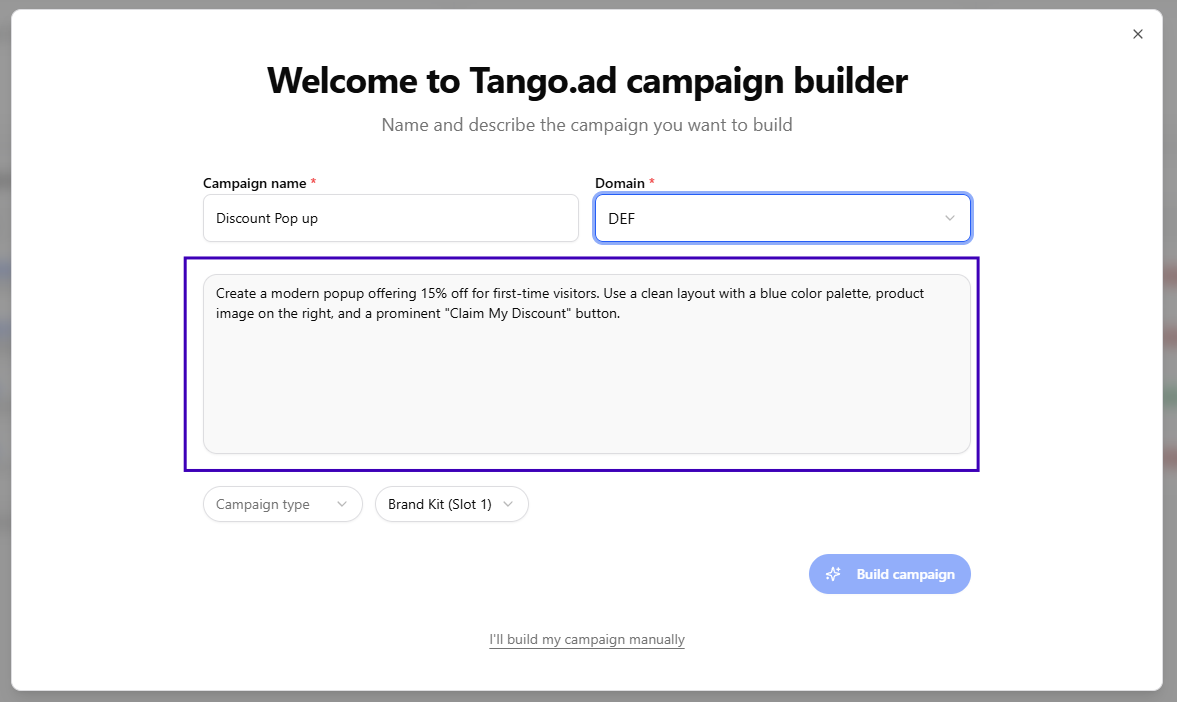
Enter a description of the campaign you want to create.
Include details such as:
- Campaign objective — What you want the campaign to achieve.
- Target audience — Who the campaign is intended for.
- Offer or promotion — The discount, product, or message you want to promote.
- Call to action — What you want visitors to do.
- Design style — The visual style or layout you prefer.
-
Example
Create a modern popup offering 15% off for first-time visitors. Use a clean layout with a blue color palette, a product image on the right, and a prominent "Claim My Discount" button.
Provide enough detail for the generated design to reflect your campaign requirements.
Describe Your Campaign
-
Add Design Assets
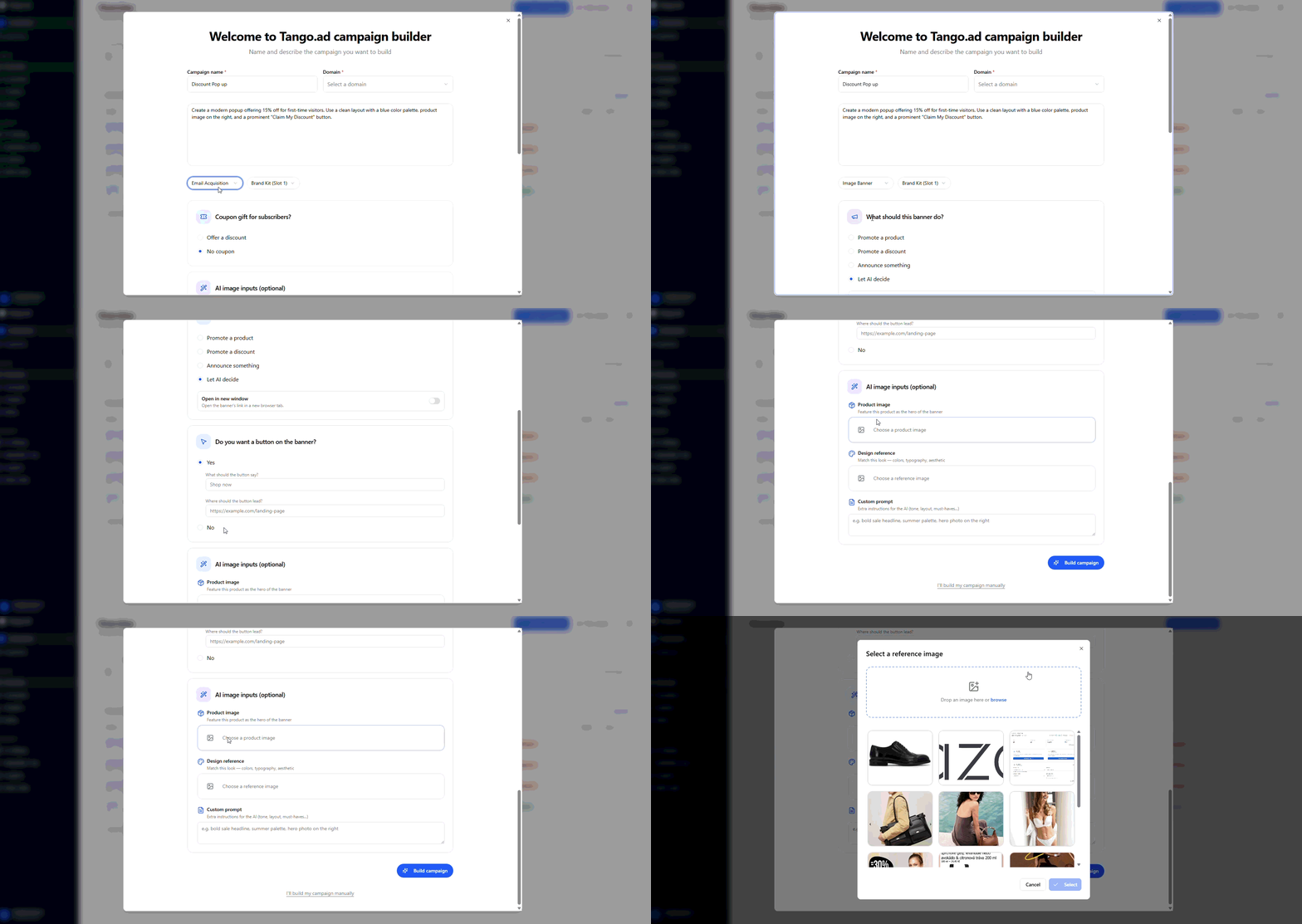
You can provide additional assets to help guide the generated design.
Product Image
Upload a product image if you want to feature a specific product in the campaign.
Product images can be useful for:
- Product promotions
- Product launches
- Featured products
-
Promotional campaigns
Design Assets
Design Reference
Upload an existing design to provide a visual reference for the campaign.
You can use:
- Existing banners
- Previous campaigns
- Brand mockups
-
Marketing materials
Design Reference
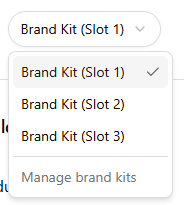
Brand Kit
Select a Brand Kit if you want to use your existing brand settings in the generated design.
A Brand Kit can contain elements such as:
- Brand colors
- Typography
- Logos
- Other visual identity elements
-
Using a Brand Kit helps keep generated campaigns consistent with your brand.
Brand Kit
For more information, see Brand Kit.

-
Generate the Design
After providing your campaign information and optional assets:
- Review the information you've entered.
- Click Generate or Build Campaign.
- Wait for the design to be generated.
-
Design Generation

-
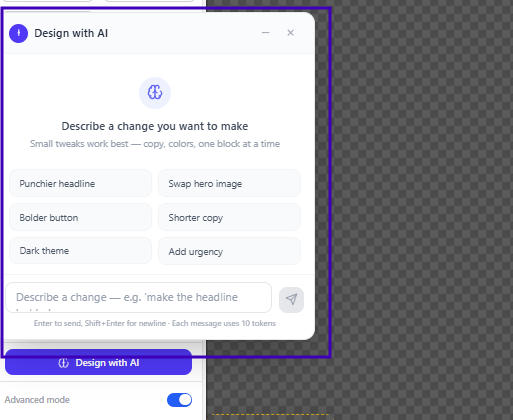
Review and Customize the Design
After the design is generated, review the campaign before publishing.
Check:
- Text and messaging
- Images
- Colors
- Typography
- Buttons and calls to action
- Overall layout
-
If changes are needed, use the Design Editor Overview to refine the campaign.
You can adjust available design elements, including text, images, colors, backgrounds, buttons, fonts, spacing, and other styling options.
Design with AI
For more information about campaign elements, see Working with Components and Layout & Styling.
-
Preview Before Publishing
Before publishing your campaign:
- Preview the campaign.
- Check the layout on desktop, tablet, and mobile.
- Verify that text, images, buttons, and links are correct.
- Make any necessary adjustments.
- Save and enable the campaign when you're ready.
-
Save and Enable Preview
For additional configuration options, see Campaign Settings.

-
Best Practices
For better AI-generated designs:
- Be specific when describing your campaign.
- Clearly explain your objective, offer, audience, and call to action.
- Use high-quality product images.
- Add a Design Reference when you have a specific visual direction.
- Use a Brand Kit when you want to maintain consistent branding.
- Review the generated design and make adjustments before publishing.
- Test the campaign across different screen sizes.
-
Frequently Asked Questions
Can I edit an AI-generated design?
Yes. After generating the design, you can refine the campaign using the Design Editor Overview.
Do I need a Brand Kit?
No. A Brand Kit is optional. However, using one can help maintain consistent branding across campaigns.
Can I generate another design?
Yes. You can adjust your campaign description or assets and generate another design.
Can I create a campaign without AI Design?
Yes. You can create a campaign manually using Create a Campaign Manually.