
Button Content Properties
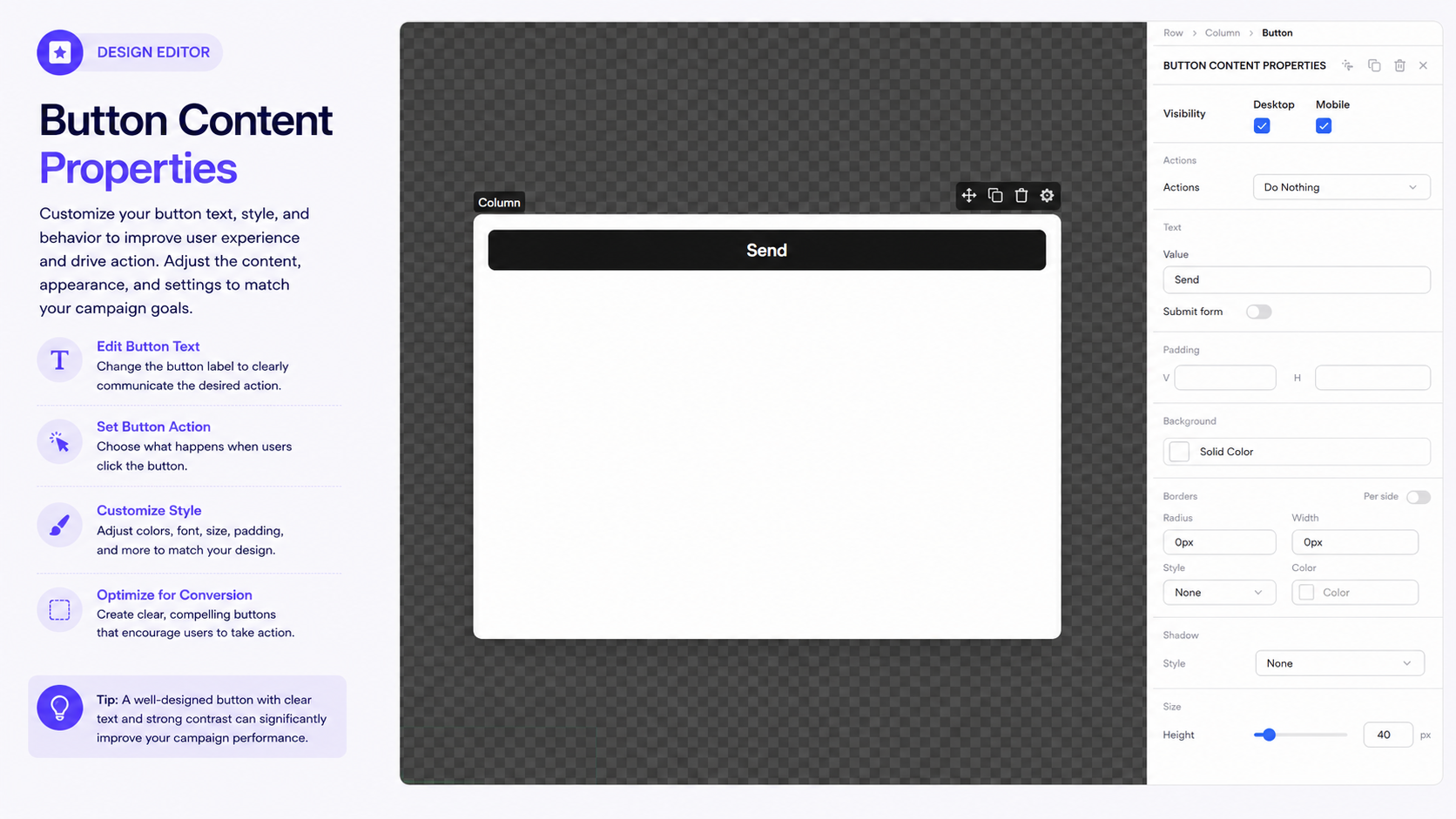
The Button content block allows you to add a clickable call-to-action to your campaign. You can customize its visibility, text, action, typography, spacing, background, borders, and other layout properties.
To configure a button, select the Button element on the canvas.
For more information about adding and managing content elements, see Working with Components and Working with Content Blocks.
Visibility
Use the Visibility settings to control where the button appears.
- Desktop — displays the button on desktop devices.
- Mobile — displays the button on mobile devices.
You can enable or disable each option independently.
Actions
The Actions setting determines what happens when a visitor clicks the button.
Available actions include:
- Do Nothing — no action is performed.
- Go to URL — takes the visitor to a specified webpage.
- Go to URL and show this step's sticker — takes the visitor to a webpage while keeping the current step accessible through its sticker.
- End this campaign — ends the campaign.
- Show this step's sticker — hides the popup and displays its sticker.
- Reopen this step from sticker — reopens the current step from its sticker.
- Change step — moves the visitor to another campaign step.
Choose the action that matches the goal of your button.
For more information about configuring actions, see Configuring Element Actions.
Text Styling
Use the Typography settings to customize the text displayed on the button.
Color
Choose the text color using Color.
Font
Select the font family for the button text.
Weight
Control how bold the text appears using Weight.
Available options include:
- Thin
- Extra-Light
- Light
- Normal
- Medium
- Semi-Bold
- Bold
- Extra-Bold
- Ultra-Bold
Style
Choose between:
- Normal
- Italic
Size
Adjust the Size of the button text and select the appropriate unit.
Spacing
Use Spacing to adjust the spacing applied to the text.
Line Height
Adjust Line Height to control the vertical space around the text.
Text Alignment
Use the alignment controls to position the button text:
- Left
- Center
- Right
- Justify
For more information about typography settings, see Typography and Text Styling.
Value
The Value field defines the text displayed on the button.
For example:
Send
Enter your desired call-to-action, such as Shop Now, Learn More, Get Started, or Submit.
Submit Form
Enable Submit form when the button should submit a form, such as an Email Input or other form fields.
Use this option when the button is intended to submit visitor information rather than simply perform a navigation or campaign action.
For more information about configuring email forms, see Email Input Settings.
Padding
Use Padding to control the space inside the button between the text and its edges.
- V — controls vertical padding.
- H — controls horizontal padding.
Increasing padding can make the button larger and easier to interact with.
Background
Use Background to set the button's background color.
Select Solid Color and choose the desired color.
A contrasting background can help make the call-to-action more noticeable.
For additional background and visual styling options, see Background and Visual Styling.
Borders
Customize the button border using:
- Radius — controls how rounded the button corners are.
- Width — controls the border thickness.
- Style — choose from None, Solid, Dashed, Dotted, or Double.
- Color — sets the border color.
- Per side — allows individual border settings for each side.
Shadow
Use the Shadow settings to add a shadow effect to the button.
Choose from the available shadow styles to give the button more depth or visual emphasis.
Additional Layout Settings
Depending on the button's available properties, you can also adjust its size, spacing, alignment, and other layout settings.
These controls help ensure the button fits correctly within its row and remains usable across different screen sizes.
For more information about managing rows and layouts, see Managing Rows and Layout.
Tip: Use clear, action-oriented button text such as Shop Now, Get Offer, or Learn More. Make sure the button has enough contrast with its background and is large enough to be easily clicked on both desktop and mobile.