
Display a Campaign in Preview
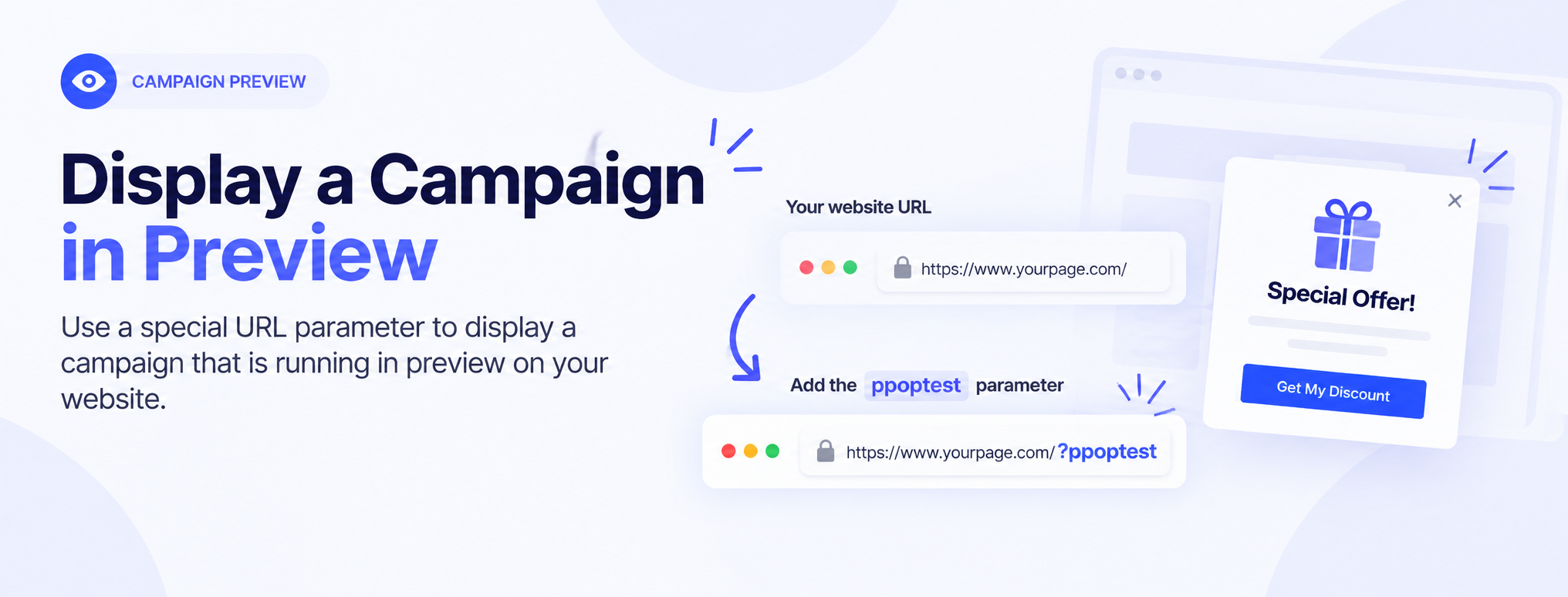
To preview a campaign directly on your website, use the ppoptest URL parameter.
- Make sure the campaign is available for preview. You can use Save and enable preview when saving and publishing a campaign.
- Open the webpage where you want to preview the campaign.
- Add
?ppoptestto the end of the URL. - Press Enter to load the page.
- The campaign will be displayed in preview mode.
Example
If your website URL is:
https://www.yourpage.com/
add the ppoptest parameter:
https://www.yourpage.com/?ppoptest

Important
The ppoptest parameter is intended for preview and testing purposes. It allows you to check how the campaign appears on the actual website without relying on the campaign's normal display conditions.
When testing, make sure you use the URL of the page where the campaign is configured to run. Also verify that the Tracking Script is installed correctly on the website.
Tip: Use website preview to check the campaign's appearance and behavior before making it live.