
Form Field Content Properties
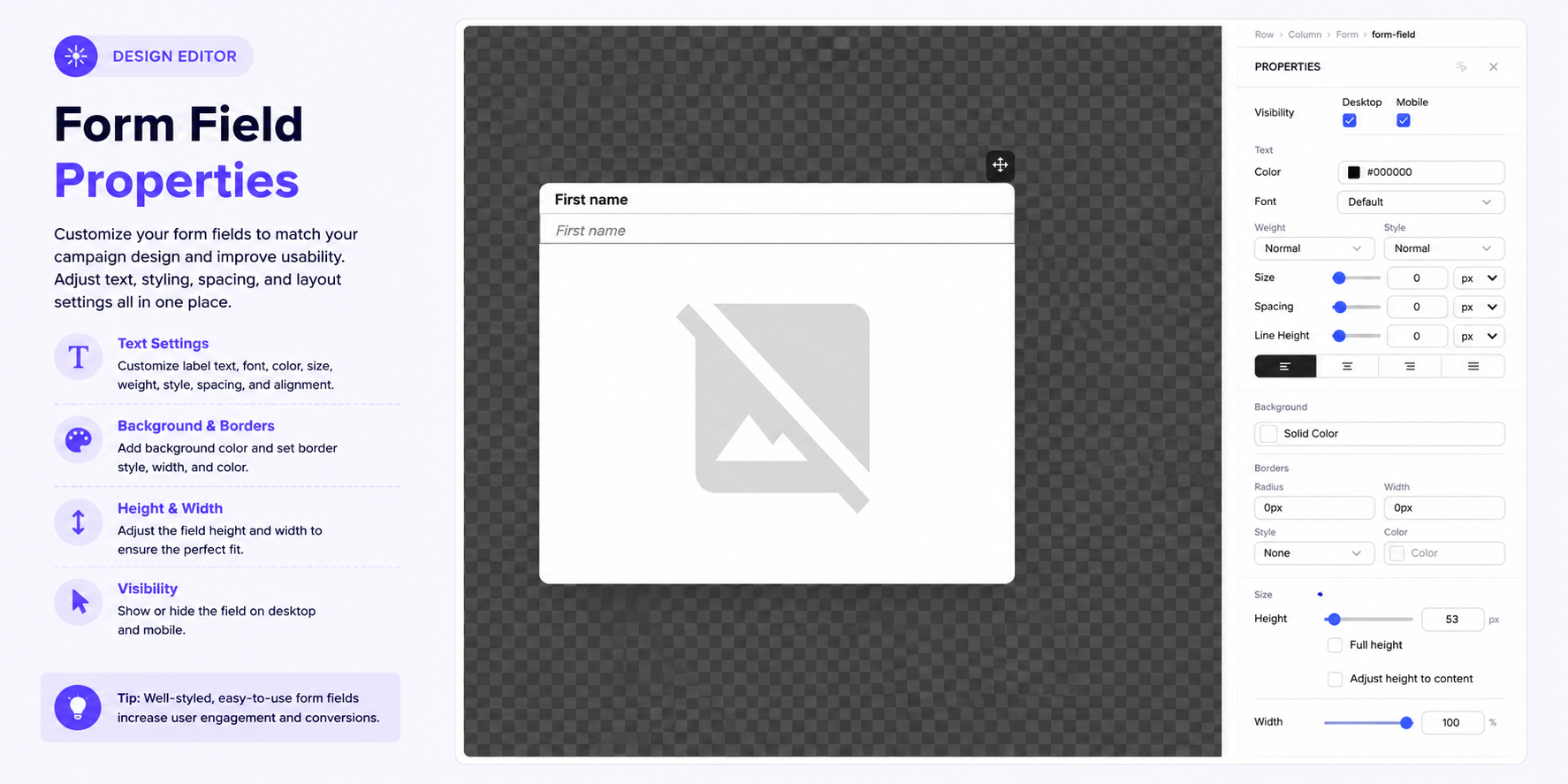
The Form Field content block allows you to add fields to a campaign form and collect information from visitors. You can configure the field's behavior and appearance, including its field type, required status, validation, text, typography, background, borders, size, spacing, alignment, and product associations.
To access these settings, select a Form Field element on the canvas.
For more information about working with content elements, see Working with Components.
Field Settings
Use the Field Settings to configure the type and behavior of the form field.
Field Type
Select the appropriate field type from the available options.
Note: The current source article does not list the available Form Field types. Add the exact field types supported by the editor here after verifying them in the current UI.
Required Field
Use the Required option to determine whether visitors must complete the field before submitting the form.
When enabled, the visitor must provide a value for the field. When disabled, the field can be left empty.
Validation
Validation checks whether the information entered by the visitor meets the requirements of the field.
Configure the validation rules available for the selected field type.
When a visitor enters an invalid value, the form should prevent submission and display the corresponding validation error.
Note: The current source article does not document the available validation rules or the exact error messages displayed by the editor. These should be verified before adding specific validation types or error text.
Visibility
Use the Visibility settings to control where the form field appears.
- Desktop — displays the field on desktop devices.
- Mobile — displays the field on mobile devices.
You can enable or disable each option independently.
Text Styling
Customize the text displayed with the form field using the typography settings.
Text Color
Use Color to change the text color.
Font
Choose the font family from the available options.
Weight
Use Weight to control how bold the text appears.
Available options include:
- Thin
- Extra-Light
- Light
- Normal
- Medium
- Semi-Bold
- Bold
- Extra-Bold
- Ultra-Bold
Style
Use Style to choose between:
- Normal
- Italic
Size
Adjust Size to change the text size. Select the appropriate unit from the dropdown.
Spacing
Use Spacing to adjust the spacing of the text.
Line Height
Use Line Height to control the vertical distance between lines of text.
For more information about text formatting, see Typography and Text Styling.
Text Alignment
Use the alignment controls to position the form field text.
Available options include:
- Left
- Center
- Right
- Justify
Choose the alignment that best fits your campaign layout.
Background
Use Background to add a background color to the form field.
Select Solid Color and choose the desired color.
For more information about background customization, see Background and Visual Styling.
Borders
Customize the form field's border using the Borders settings.
Radius
Set the Radius to control how rounded the field's corners are.
Width
Set the Width to control the thickness of the border.
Style
Choose a border style:
- None
- Solid
- Dashed
- Dotted
- Double
Color
Select the color of the border.
Size
The Size settings control the dimensions of the form field.
Height
Adjust Height to make the field taller or shorter.
You can also enable:
- Full height — makes the field use the full available height.
- Adjust height to content — allows the height to adapt to its content.
Width
Adjust Width to control how much horizontal space the form field occupies.
You can also enable:
- Full width — makes the field span the full available width.
- Adjust width to content — allows the field to adapt its width to its content.
Spacing
Use Spacing to control the space around the form field.
Enter a value in pixels to increase or decrease the spacing between the field and surrounding elements.
Layout
The Layout settings control how the content is arranged within the form field's container.
Order
Use Order to determine how the content is arranged.
For example, selecting Column arranges the content vertically.
Vertical Alignment
Use Align Vertically to control the vertical position of the content.
You can align content to the:
- Top
- Center
- Bottom
Horizontal Alignment
Use Align Horizontally to control the horizontal position of the content.
You can align content to the:
- Left
- Center
- Right
For additional layout options, see Managing Rows and Layout.
Edit HTML
The Edit HTML option allows you to access and modify the HTML associated with the Form Field element.
Use this option for advanced customization when needed.
Products
The Products section allows you to associate products with the Form Field element.
Click + Add to tag a product or product category.
Tagged products can be attributed to the campaign, helping connect the form element with the products promoted by the campaign.
For more information about product tagging, see Tagging Products.
Recommended Setup
For a clean and user-friendly form:
- Select the appropriate Field Type.
- Enable Required when the field must be completed.
- Configure the appropriate Validation rules.
- Enable Desktop and Mobile visibility as needed.
- Use a readable font and appropriate text size.
- Set sufficient field height for easy interaction.
- Use Full width when the field should align with other elements.
- Add enough spacing between fields.
- Use clear alignment and consistent styling.
- Test the form on both desktop and mobile, including required fields and validation behavior.
Tip: Keep form fields simple and easy to use. Clear labels, appropriate validation, and consistent sizing and spacing help visitors complete the form correctly.